Data Package: Any |
|
Role: Account Holder or Administrator |
1. Sign in to your DataManager account with your Admin or Account Holder user name and password.
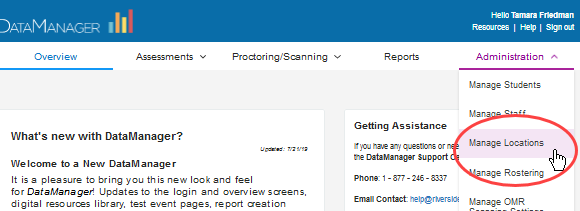
2. From the top navigation bar (of any page), select Administration > Manage Locations.
The Manage Locations page opens.
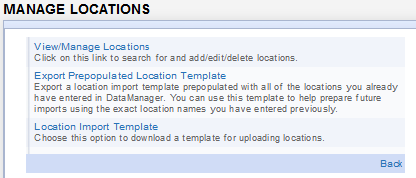
3. Click View/Manage Locations. The top levels of your locations appear in the View/Manage Locations table.
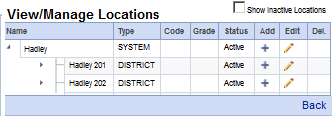
4. Search
for a location by opening and closing sub-locations in the hierarchy.
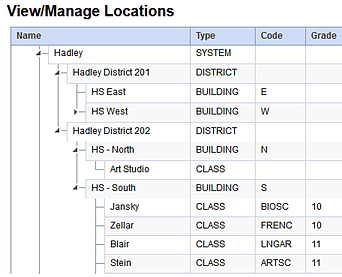
Click the right arrow ( ) to
expand a node in the hierarchy. Click the down arrow (
) to
expand a node in the hierarchy. Click the down arrow ( )
to collapse a node in the hierarchy.
)
to collapse a node in the hierarchy.
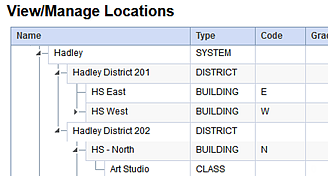
Note the following display rules to help you find a location:
● All locations loaded, entered, and saved in the system appear in this table, including historical locations that may be used for longitudinal reporting.
● To search for locations that have been inactivated (in addition to all active locations), click the Show Inactive Locations check box.
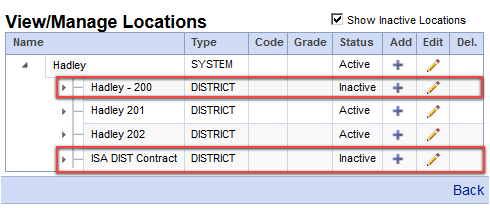
● Locations that share a parent location appear in alphabetical order by Name under the parent location, with the exception of class-level (bottom-level) locations. Class-level locations under the same parent location are ordered numerically by Grade, then alphabetically by Name.