|
Data Package: Online Testing |
|
Role: Account Holder, Administrator, or Teacher |
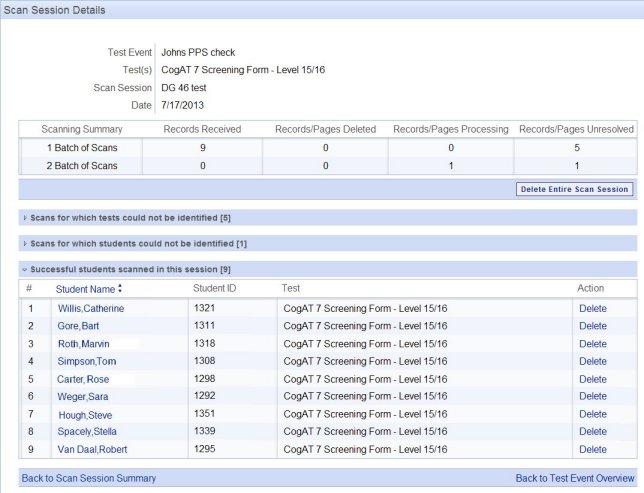
From the Scan Session Details page in DataManager, you can delete an entire scanning session, delete student answer sheets that have scanned successfully, view student answer sheets that have scanned successfully, or view image details for failed scans. Account Holders and Administrators can also edit the answer strings of a successful scan.
● The Scan Session Details page is divided into three to five sections (depending on whether there are failed scans): scanning session details (Test Event, Test(s), Scan Session Name, and Date), Scanning Summary, Scans for which tests could not be identified, Scans for which students could not be identified, and Successful students scanned in this session.
● The Test(s) field displays the test, form, and level captured from the scanned answer sheets.
● The Scanning Summary section displays the counts for each batch of scans included in the scan area, including the number of pages scanned, the number of deleted scans, the number of scans processing, and the number of unresolved scans.
The next steps depend on the information you see on the Scan Session Details page.
➔ See Deleting Incorrectly Scanned Test Sessions or Answer Sheets, Editing Successful Student Scans, Resolving Failed Student Scans, or Resolving Failed Test Scans.
➔ Click Back to Scan Session Summary. The Scan Session Summary page appears. See Sending to Scoring.